
Short product demo
A short demo of Ghotly AI on a video call: the overlay transcribes the call and drafts answers. It is not a setup tutorial; the setup steps follow below. The YouTube player loads only when you press play.
Requirements & installation
Ghotly AI runs on 64-bit Windows 10 (version 2004 or later) and Windows 11. macOS: coming soon. Linux: not planned. You also need a Deepgram key and a key for at least one AI provider (step 3).
Get it from the Download page. The file is named ghostly-<version>-setup.exe (currently ghostly-3.5.2-setup.exe).
In PowerShell, in the folder where you saved it, run this command with your file’s version number, and compare the result with the SHA-256 checksum shown on the Download page:
Get-FileHash .\ghostly-<version>-setup.exe -Algorithm SHA256Run the file and follow the installer. It adds a Ghostly shortcut to your desktop.
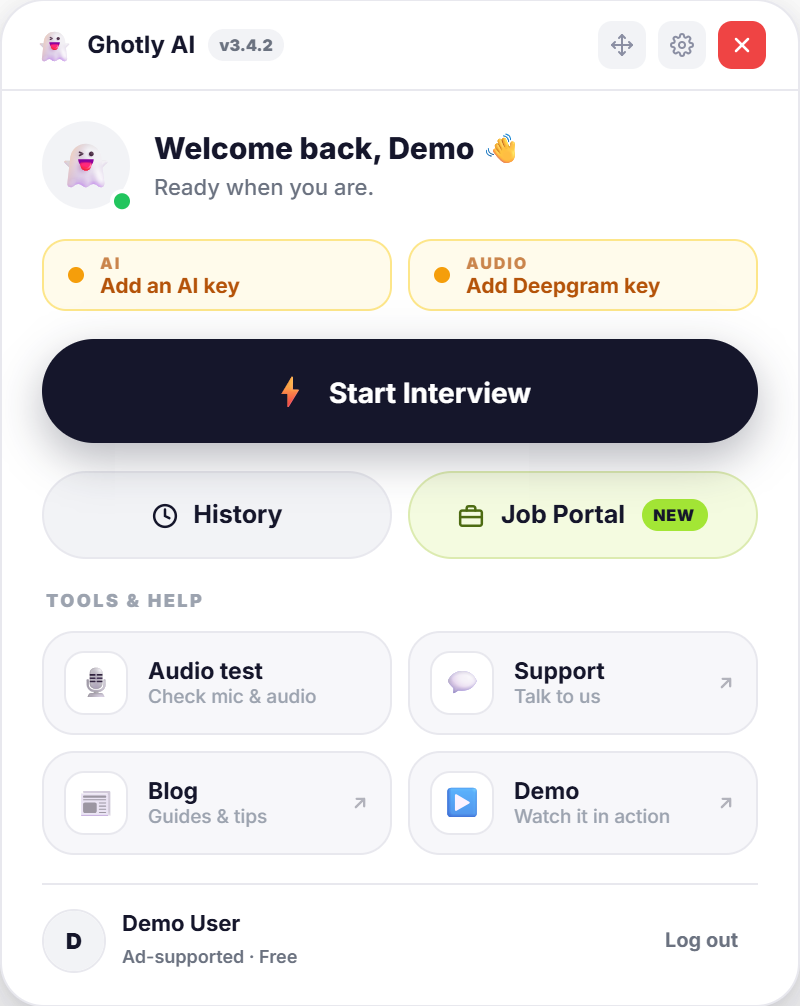 Figure 1: The home screen
Google sign-in & your 3 PCs
The app signs you in through your default browser (RFC 8252 loopback sign-in with PKCE), so the desktop app never sees your Google password.
- Sign in: press “Login with Ghotly AI” in the app. Your browser opens; choose your Google account and confirm.
- This PC is added: the app keeps its sign-in on this PC, sealed by Windows (safeStorage / DPAPI). When another PC is added to your account, we email you.
- Up to 3 PCs: one account can be used on up to 3 PCs, for example a laptop and a desktop.
- Making room: to use another PC when all 3 places are taken, remove one under Account > PCs & security. A removed PC is signed out.
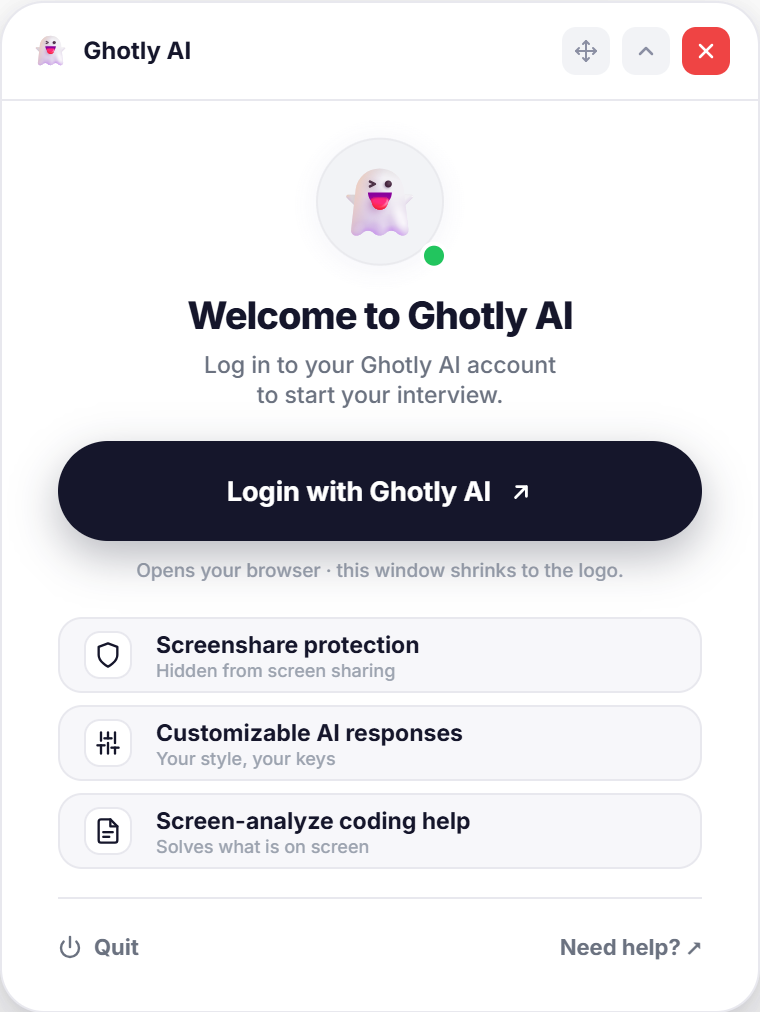 Figure 2: The sign-in screen
API keys
Ghotly AI is bring-your-own-key: you create keys with the providers and pay them directly for usage beyond any free tier. The ₹49 plan does not include AI usage. After you sign in, the setup screen asks for a Deepgram key and a key for at least one AI provider: paste each one and press Test Key, then Save & Continue. You can change them later under Settings > API Keys.
safeStorage / DPAPI) for your Ghotly AI account on that PC, and are never sent to Ghotly AI. On a new PC, or after reinstalling Windows, you enter them again.| Service | What it does | Models in the app | Cost |
|---|---|---|---|
| Deepgram | Live speech-to-text (required) | Nova-2 | Billed by Deepgram; check its current pricing and any credit for new accounts |
| Groq | AI answers (text only) | GPT-OSS 120B, GPT-OSS 20B | Free tier; check current limits |
| Gemini | AI answers and screenshots | Gemini 3.6 Flash, 3.8 Flash, 3.1 Flash-Lite | Free tier; check current limits |
| OpenRouter | AI answers | Auto (best free) and a list of free models | Free models; check current limits |
| NVIDIA | AI answers (text only) | Llama 3.1 Nemotron 70B, Mixtral 8x22B, DeepSeek V4.1 Flash | Free tier; check current limits |
| OpenAI | AI answers | GPT-5.6 Sol, Terra and Luna; GPT-4o | Paid API key |
| Anthropic | AI answers | Claude Sonnet 5, Opus 5, Haiku 4.5, Sonnet 5.5 | Paid API key |
| Grok (xAI) | AI answers | Grok 4.6, 4.5, 4.3 | Paid API key |
One AI provider is active at a time. If it runs out of quota, the app can switch to another provider you added a key for. Providers change their free tiers and prices; check their current terms.
 Figure 3: Settings > API Keys
Audio & the overlay
On Windows 10 (version 2004 or later) and Windows 11 the overlay sets SetWindowDisplayAffinity(hwnd, WDA_EXCLUDEFROMCAPTURE), which asks Windows to leave the window out of screen capture and recording. It is an operating-system feature, so results depend on how the app you share with captures your screen. Test it with a practice call before you rely on it.
The app transcribes the call audio playing on your PC (Windows system-audio loopback) with your Deepgram key. The audio setup screen lets you test your microphone before you start. If the transcript stays empty, make sure the call plays through your default Windows playback device.
Set the overlay’s opacity in Settings (20% to 100%). The window stays on top of other windows; Ctrl + arrow keys move it.
Resume details
Answers can draw on your real background. Resumes are handled in the desktop app; the website does not read resume files.
- Import in the app: open Interview Setup > Profile and choose your resume (PDF, DOCX, TXT or an image). The file is read on your PC.
- Your AI provider fills in the details: the resume’s text goes to your own AI provider (or, if it is out of quota, another provider you added a key for). For a scan or photo, the app asks before it sends the page images to that provider, and offers “Paste the text instead”.
- Saved on your PC: the details stay on your PC. They reach your Ghotly AI account only when you press “Save to my account”.
- On the website: Account > Resume details is a plain text form for the details saved to your account.
- In your answers: when a question touches your experience, the AI can refer to the projects and skills in your profile instead of giving a generic answer.
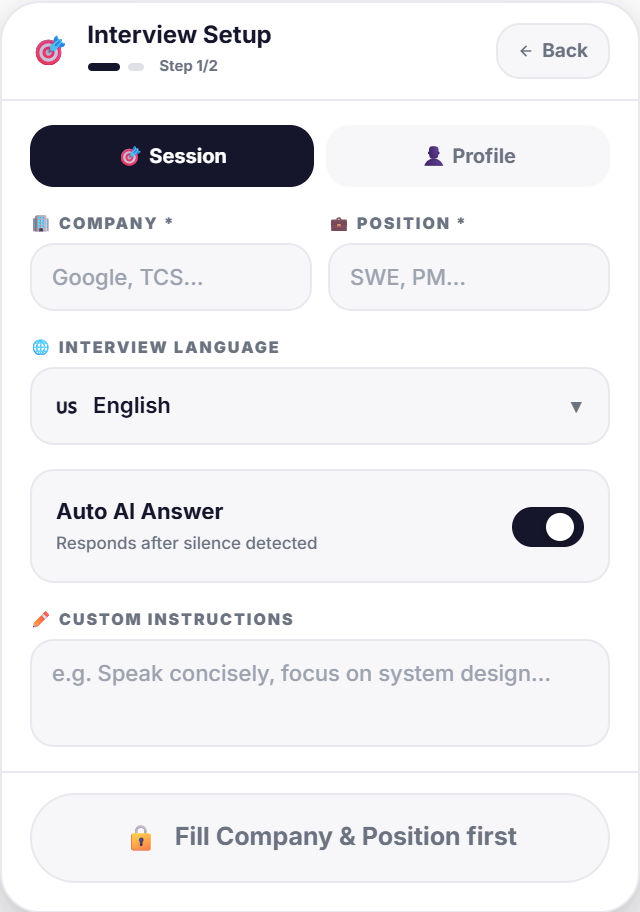 Figure 4: Interview Setup, with the Profile tab next to Session
Keyboard shortcuts
The default shortcuts are global: they work while another window, such as your browser, editor or call, has focus. You can change them in the app’s Settings. If another app already uses a combination, the app tells you it could not register it.
| Shortcut | Action | Description |
|---|---|---|
| Ctrl + E or Ctrl + Shift + S | Screenshot | Captures your screen, compresses it and asks the AI about what it sees. Best for coding or design questions. |
| Ctrl + Enter | Ask AI | Asks the AI about the current context. |
| Ctrl + 0 | Send to AI | Sends the live transcript now, without waiting for the silence detector. |
| Ctrl + N | Next question | Saves the current question and answer to history and clears the screen for the next one. |
| Ctrl + B or Ctrl + Shift + H | Show / hide | Toggles the overlay window instantly. |
| Ctrl + G | Start over | Resets the session: transcript, screenshots and Q&A. |
| Ctrl + 8 | Scroll up | Goes back to the previous question or answer page. |
| Ctrl + 2 | Scroll down | Moves forward to the next question or answer page. |
| Ctrl + arrow keys | Move the overlay | Moves the overlay window up, down, left or right. These are fixed and cannot be changed. |
User guide (PDF)
Prefer something to read offline or print? The PDF guide has the same setup steps, the shortcut table and the troubleshooting tips.
Ghotly AI user guide
A plain PDF: setup, API keys, the overlay, resume details, shortcuts and troubleshooting.
Troubleshooting & support
Press Ctrl + B (or Ctrl + Shift + H) to show it again. The app also has an icon in the Windows notification area.
Test your Deepgram key in Settings, and make sure the call’s audio plays through your default Windows playback device.
A provider’s free tier ran out of quota. The app can switch to another provider you added a key for; you can also pick another provider in Settings or use a paid key.
Open a ticket on the Support page or email support@ghotlyai.in. Every signed-in account can open tickets; Pro members are in a priority queue.